How to Deactivate LinkedIn Account Permanently: The Complete 2026 Guide
How to Deactivate LinkedIn Account Permanently: The Complete 2026 Guide
Meta Description: Want to know how to deactivate linkedin account permanently? Follow our step-by-step guide to safely back up data and delete your profile for good. Start now!
Introduction
Are you feeling overwhelmed by endless connection requests, irrelevant notifications, or the general pressure of professional networking? You are not alone. Whether you're retiring, changing career paths entirely, or simply taking a stand for digital minimalism, learning how to deactivate your LinkedIn account permanently is a definitive step toward reclaiming your digital footprint.
While many online guides offer confusing, repetitive, or incomplete instructions that leave you wondering what happens to your data, this guide is different. We provide a streamlined, practical, and highly detailed roadmap. By the end of this article, you will know exactly how to back up your critical career data, cancel active subscriptions, and close your profile for good—without losing the digital assets you worked hard to build.
Hibernate vs. Delete: Knowing the Difference
Before you proceed, it is critical to address a common point of confusion. Many users search for "how to deactivate linkedin account permanently," but in LinkedIn's terminology, there is a strict difference between deactivating (hibernating) and closing (deleting) an account.
If you are unsure which path to take, consult the comparison table below to avoid making an irreversible mistake.
| Feature / Consequence | Hibernate (Deactivate) | Close (Delete Permanently) |
|---|---|---|
| Profile Visibility | Hidden from all users and search engines. | Completely removed from LinkedIn. |
| Connections & Endorsements | Preserved securely in the background. | Permanently deleted. Cannot be restored. |
| Messages & Posts | Maintained, but attributed to "A LinkedIn Member." | Permanently deleted. |
| Account Recovery | Yes. Simply log back in to reactivate anytime. | Only within 14 days of deletion. After that, it's gone. |
Crucial Pre-Deletion Checklist: Do's and Don'ts
Deleting your LinkedIn account has a cascading effect on other connected services. According to data privacy experts, losing access to third-party accounts is the number one regret users face when blindly deleting social profiles Forbes Privacy Research.
Review these essential Do's and Don'ts before making your final decision:
- DO cancel LinkedIn Premium first: Deleting your basic account does not automatically stop third-party billing (like Apple or Google Play subscriptions). You must cancel Premium separately.
- DO download your data: Save your resume, connections, and messages.
- DON'T forget connected apps: If you use "Sign in with LinkedIn" for other job boards or software, change those logins to an email/password combination first.
- DON'T ignore LinkedIn Learning: Closing your account permanently deletes all your course progress and certificates. Print or save your certificates beforehand.
Step 1: How to Backup Your LinkedIn Data Before Deleting
Before closing your account, it is absolutely essential to download your personal data archive. This includes your connections, recommendations, and messages.
- Log into your LinkedIn account from a desktop browser.
- Click your Profile Picture (Me icon) in the top right corner of the navigation bar.
- Select Settings & Privacy from the dropdown menu.
- On the left sidebar, click on Data Privacy.
- Under the How LinkedIn uses your data section, select Get a copy of your data.
- Choose the specific data files you want, or select Download larger data archive for everything.
- Click Request Archive.
Note: It can take up to 24 hours for LinkedIn to compile your complete archive. Wait until you receive the download email before proceeding to the next step.
Step 2: How to Deactivate LinkedIn Account Permanently
Once your data is safely downloaded and any Premium subscriptions are canceled, you are ready to permanently close your LinkedIn profile. Follow these exact steps:
- Click your Profile Picture (Me icon) at the top of your LinkedIn homepage.
- Select Settings & Privacy from the dropdown menu.
- In the left-hand menu, select the Account preferences tab.
- Scroll down to the very bottom to the Account management section.
- Click on Close account.
- A prompt will appear asking if you are sure. Click Continue.
- Select the reason you are closing your account from the provided list (e.g., "I have a privacy concern" or "I'm receiving too many emails"). You can also type a specific reason in the text box.
- Click Next.
- Enter your account password to verify your identity.
- Click Close account to finalize the permanent deletion.
What Actually Happens When You Hit Delete?
Unlike other guides that leave you guessing, here is the exact timeline of what happens next:
- Immediately: Your profile vanishes from the LinkedIn platform. No one can search for you, and your connections will no longer see your profile.
- Within a few days: Search engines like Google and Bing will gradually remove your profile from their search results. (LinkedIn cannot control how fast Google updates its cache).
- After 14 Days: Your data is purged from LinkedIn's servers. At this point, the process is completely irreversible.
Supercharge Your Job Search Without LinkedIn via JobSeekerTools
Leaving LinkedIn doesn't mean your career has to stall. In fact, cutting out the noise can make your job hunt more focused and effective.
If you're wondering how to maintain momentum, JobSeekerTools is your ultimate companion. Our platform is designed to help you build ATS-optimized resumes, manage your job applications, and analyze role-matching without relying on social networking algorithms. With JobSeekerTools, your data stays private, and your job search becomes a streamlined, targeted process. Focus on what matters—landing the perfect role—without the endless scrolling.
Key Resources
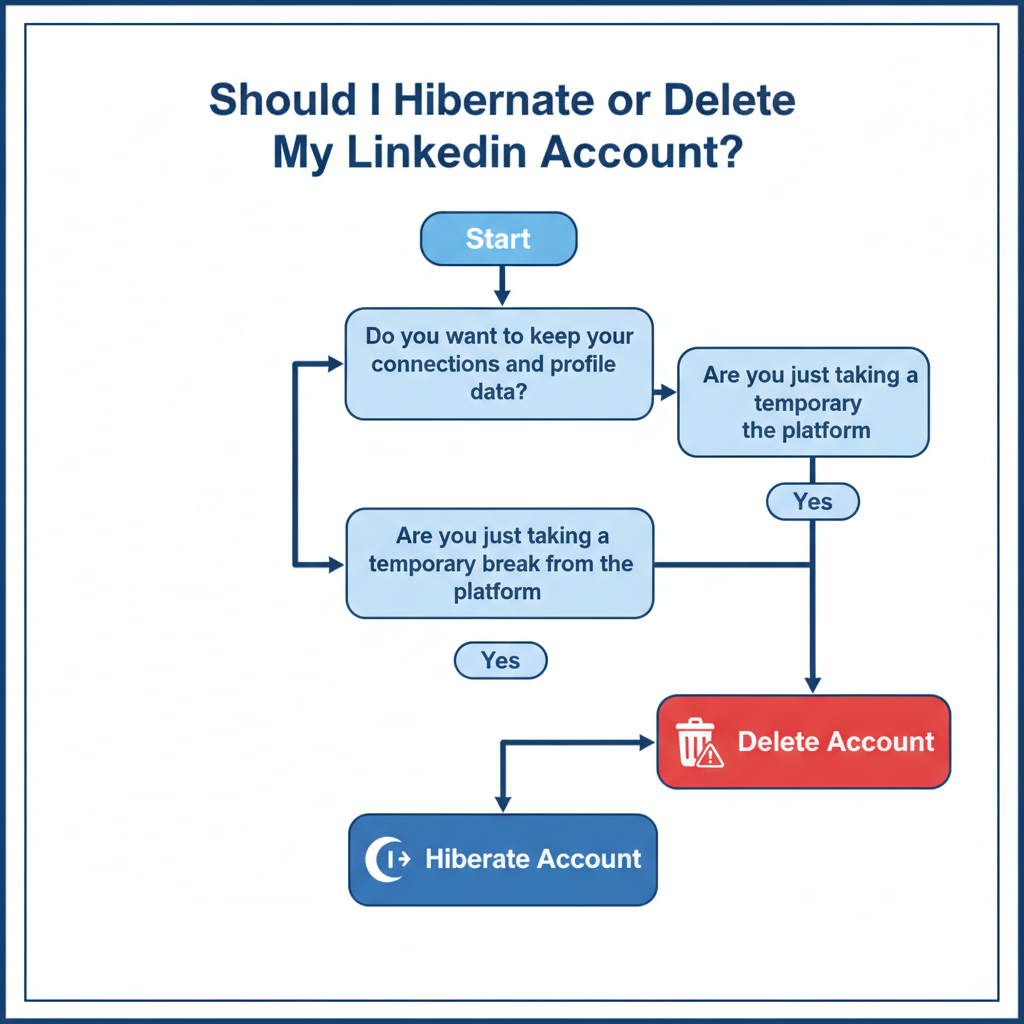
Flowchart: Should I Hibernate or Delete My LinkedIn Account?
A step-by-step decision guide to help you choose the right action for your LinkedIn account.
Q1: Are you taking a temporary break from LinkedIn?
- YES ➡️ Proceed to Q2.
- NO ➡️ Proceed to Q3.
Q2: Do you want to keep your connections and data for when you return?
- YES ➡️ Action: HIBERNATE Your Account
- Why? Your profile will be temporarily hidden from the public and your connections, but all your data (connections, endorsements, messages) will be preserved for when you reactivate.
- NO ➡️ Action: DELETE Your Account
- Why? You want to completely wipe your current presence and potentially start completely fresh in the future.
Q3: Are you permanently done with LinkedIn and want all your data removed?
- YES ➡️ Action: DELETE Your Account
- Why? Your profile, connections, messages, and all personal data will be permanently erased. (Note: You have a 14-day grace period to reverse this).
- NO ➡️ Action: ADJUST Privacy Settings
- Why? If you aren't leaving temporarily and don't want to permanently delete everything, consider just modifying your email notification frequencies or profile visibility settings instead of deactivating.
Infographic: LinkedIn Account Deletion Timeline
A clean timeline graphic showing what happens immediately, within 48 hours, and at the 14-day permanent deletion mark.
Phase 1: Immediately
- Profile Hidden: Your profile instantly becomes invisible to all LinkedIn members and the public.
- Connections Lost: You lose access to all your 1st-degree connections.
- Endorsements & Recommendations Gone: Any endorsements or recommendations you've received or given are removed.
Phase 2: Within 48 Hours
- Search Engine Cache Updates: While your profile is gone from LinkedIn, search engines like Google or Bing may still show your profile in search results temporarily until they clear their caches. Clicking the link will result in an error.
Phase 3: The 14-Day Mark (Permanent Deletion)
- Point of No Return: Up until the 14-day mark, you have a grace period to reactivate your account and recover most of your data. Once 14 days pass, your account data is permanently erased.
- Data Wiped: All your personal data, messages, and saved content are permanently deleted from LinkedIn's systems.
- Exceptions: Note that LinkedIn may retain certain non-personally identifiable log data or information related to financial transactions (if applicable) as required by law.
Frequently Asked Questions
Can I recover a permanently deleted LinkedIn account? Yes, but only within a very brief window. You can recover your account by logging back in within 14 days of deletion. However, even if you recover the account, you will permanently lose any group memberships, endorsements, recommendations, and pending invitations.
Can I use the same email address to create a new LinkedIn account later? Yes. Once your account is fully closed and your data is purged from the system, the email address associated with your deleted account is freed up. You can use it to create a brand new, empty LinkedIn profile in the future.
Will closing my account automatically cancel my LinkedIn Premium? No. If you purchased LinkedIn Premium through a third party like the Apple App Store or Google Play, closing your LinkedIn account will not cancel your billing. You must go to your phone's subscription settings and manually cancel LinkedIn Premium before closing your profile to avoid unexpected charges.
Conclusion
Understanding how to deactivate linkedin account permanently is empowering, giving you total control over your professional online presence. By taking the time to back up your vital data, canceling any paid subscriptions, and carefully navigating the deletion process, you ensure a clean, secure break from the platform. Remember, stepping away from LinkedIn doesn't end your career trajectory—tools like JobSeekerTools are here to support your private, focused, and successful job search journey.